Complete Guide to Browser-Based PDF Tools
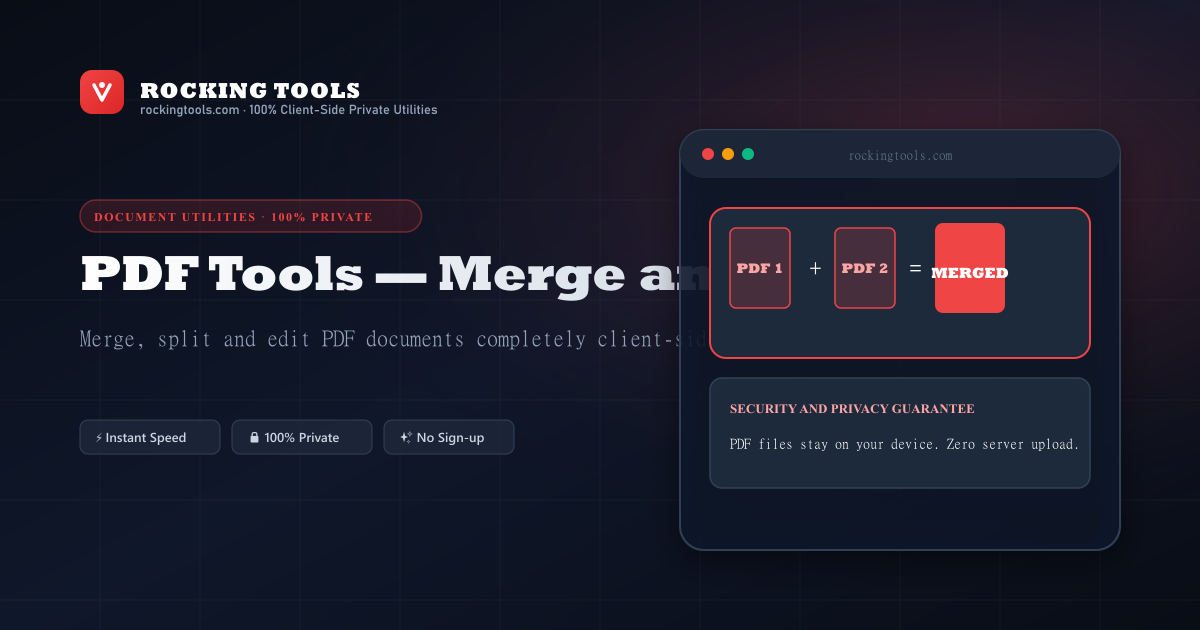
Traditional online PDF tools upload your sensitive documents to remote cloud servers for processing. Rocking Tools processes everything using JavaScript directly on your device — your files stay 100% private and never leave your computer.
Convert: Images to PDF
- Supported Inputs: JPEG, PNG, and WebP images (single or multiple files at once)
- Page Sizing: Each image fills one A4 page, auto-scaled and centered with padding
- Order Control: Use up/down arrows to set the exact page order before converting
- WebP Support: WebP images are automatically converted via HTML5 Canvas before embedding
- Output: A single download-ready PDF named
converted.pdf
Merge: Combine Multiple PDFs
- Input: Upload 2 or more PDF files at once
- Reorder: Up/down arrows to set the final document order
- Page Count Display: See the page count for each file and the running total
- Output: One merged PDF with all pages in sequence, named
merged.pdf
Split: Extract Pages from a PDF
- Input: One PDF file (any page count)
- All Pages Mode: Every page exported as its own PDF, bundled into a
.ziparchive - Custom Range Mode: Type a range like
1-3, 5, 7-9to get exactly those pages as a single PDF - Output: ZIP archive (all-pages) or single PDF (range mode)
Dedicated Free PDF Tools
Jump directly to our dedicated, single-purpose PDF utilities:
Combine multiple PDF documents into one organized file in seconds.
Extract specific page numbers, custom ranges (1-4, 8), or save every page as a separate PDF.
Turn JPG, PNG, and WebP photo collections into a clean, unified PDF presentation.
Convert camera photo scans and receipts into standard PDF documents.
Convert transparent diagrams and design exports into sharp vector-grade PDFs.
Frequently Asked Questions
Are my PDF files uploaded to any server?
No. All PDF processing — conversion, merging, and splitting — happens entirely inside your browser using the pdf-lib JavaScript library. Your files never leave your device.
What image formats can I convert to PDF?
You can convert JPEG, PNG, and WebP images to a single PDF document. Each image becomes one A4 page, automatically scaled to fit with padding.
Is there a file size or page count limit?
There is no hard limit imposed by the tool. Processing performance depends on your device RAM and CPU. We recommend batches under 200 MB or 200 pages for smooth operation on most devices.
Can I reorder PDFs when merging?
Yes. The Merge tab lets you use up/down arrows to reorder the uploaded PDFs into your preferred order before merging into one file.
What does the Split tool do exactly?
Split extracts pages from a single PDF. In All Pages mode, each page is saved as its own PDF inside a ZIP archive. In Custom Range mode, you specify pages like "1-3, 5, 7-9" and receive a single PDF with just those pages.
Does the tool work offline?
Yes, once the page has fully loaded. All PDF processing is done locally in your browser — no internet connection is needed to run the tool.